Deleting Home page shortcut
There are two options for deleting an existing custom Home page shortcut:
1) Select one or more Home Page Shortcuts from the list using the checkboxes or directly selecting the rows, and then click on the Delete option from the slide-up panel as shown in the below screen.
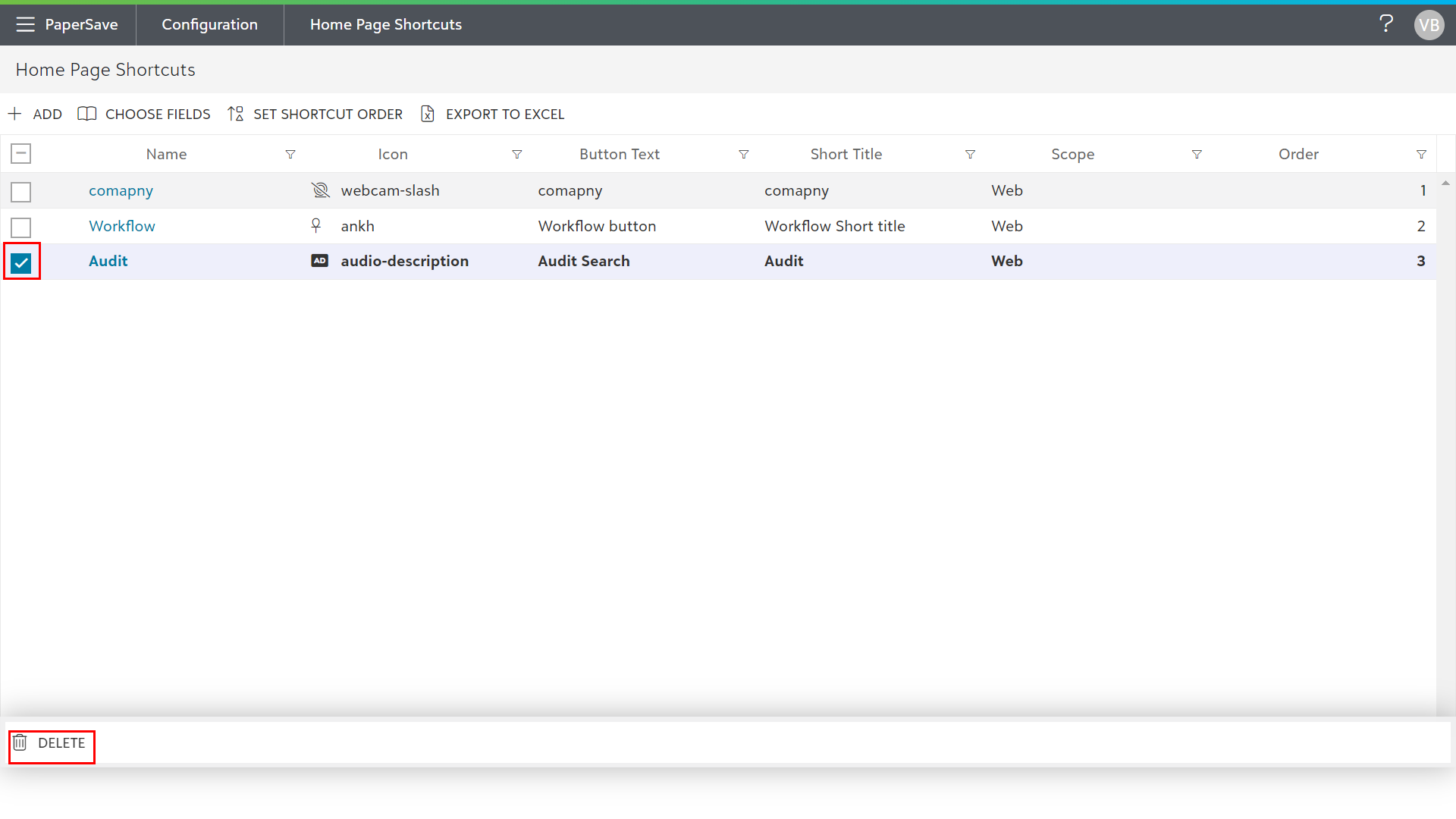
- Once you click on the Delete option, a confirmation message will appear, as shown on the below screen.
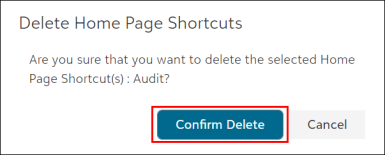
- Now, click on the Confirm Delete button if you want to perform a delete operation, or click on the Cancel button to abort.
2) On the other hand, you can also open any existing shortcut and click on the Delete Home Page Shortcut option in the upper-right corner as shown in the below screen to delete a specific home page shortcut.
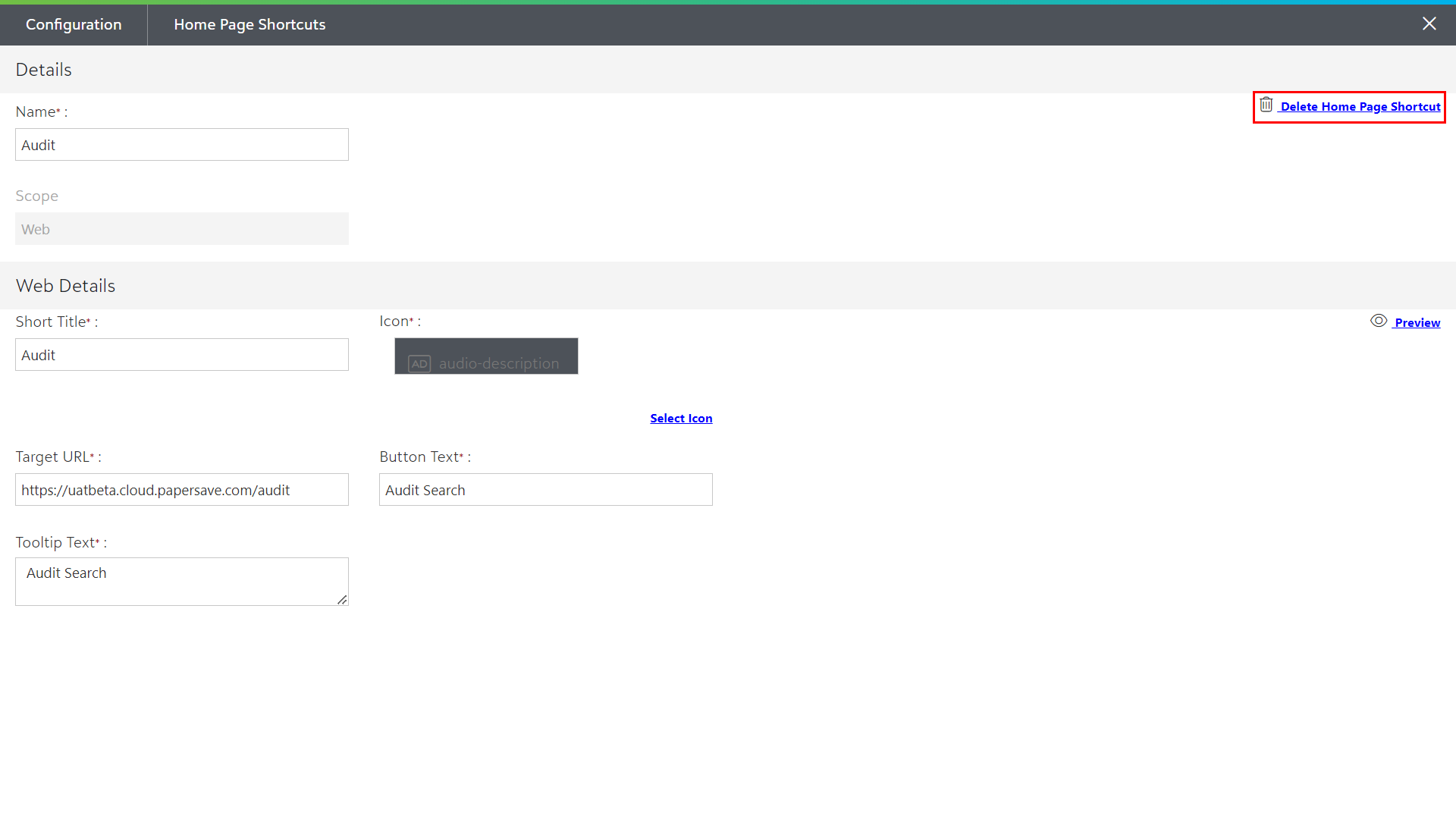
- Once you click on the Delete Home Page Shortcut option, a confirmation message will appear, as shown on the below screen.
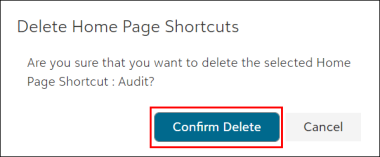
3) Now, click on the Confirm Delete button to perform the delete operation or the Cancel button to abort. Once the Home page shortcut is deleted, it will show success toast notification as shown below.